Configuration & Defaults
In the Settings section of the Admin, you can do the following:
- Edit your site’s global settings
- Edit defaults for Cards and Collections
Global Settings
Site
-
Site title- used in feeds, page titles -
Site Description- used in feed metadata -
Author- used in feeds and metadata and it Posts if no author is specified in the Post itself
Branding
-
Logo- Image file used in the site’s header if you prefer to use an image instead of text -
Logo style- How to display the logo (beside_textorreplace_text) -
Favicon- Image file used for favicon
Custom Fonts
To add custom fonts, use the “Manage: FONTS” button in this section. Supported formats:
- .woff2 (recommended for best compression)
- .woff
- .ttf
- .otf
After uploading the font file, use the COPY FILENAME button in the fonts list.

Paste the filename into the Settings like so:
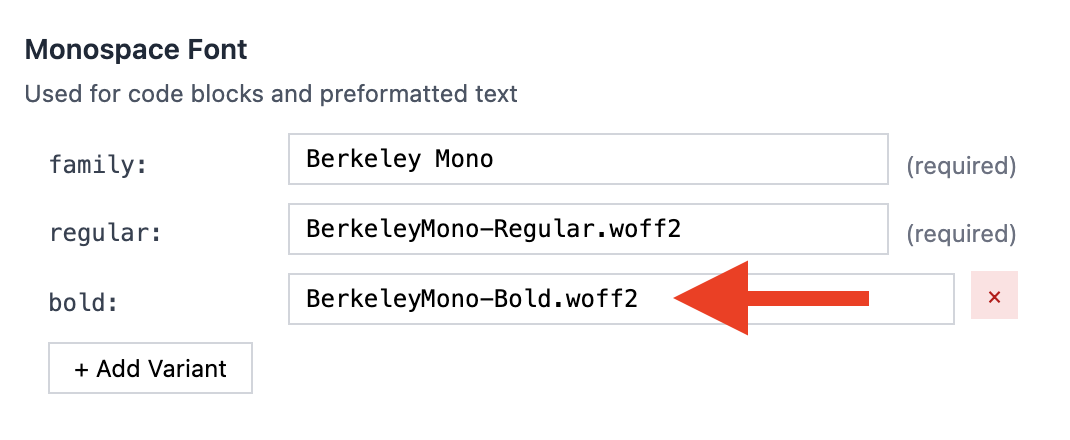
SAVE CONFIGURATION and the fonts should update on the site.
Fonts roles
There are 3 font roles in Roe CMS: - Heading - Used for headings and logo - Body - Used for body text, smaller text - Monospace - Used for code text
Each font role can support as many variants as you like but we recommend as few as possible:
Recommended for Heading
- bold/semibold/black (one of these)
- light (optional)
Recommended for Body
- regular
- bold
- italic
- bold_italic (optional)
Recommended for Mono
- regular
- bold (optional)
Custom Fonts
You can configure custom fonts for three roles: heading, body, and mono (code). Each font role supports these variants:
- regular (required)
- bold (optional)
- italic (optional)
- bold_italic (optional)
Defaults
This allows you to customize the defaults used for Collections and Cards, as well as the Buttons which generate the code in the Editor.
How Collection and Card Defaults Work in the CMS
-
System Default: Defined in
defaults/collections.ymlanddefaults/cards.yml - Content Override: Specified in individual cards/collections
- Priority: Content-specific values always override system defaults
Example:
# In defaults/collections.yml
default_limit: 10

# In your content
```collection
limit: 5  # This overrides the default of 10
```
Cards Defaults
This allows you to edit the defaults used for Cards:
Post-link
default_imagedefault_styledefault_link-text
Aside
default_link-text
Pullquote
default_position
The CARD ▼ button in the editor
You can customize what this button does by updating the Button Templates for Cards.
Collections Defaults
This allows you to edit the defaults used for Collections.
- source - posts, pages, documenation
- post_type - article, audio, video, image
- order - date, date-asc, title, filename
- limit - number of items or ‘all’
- template - list, compact, links
- items_per_page - number of items for pagination
The COLLECTION button in the editor
You can customize what this button does by updating the Button Templates for Collections.